
Welcome to the Croatian Keyboard Installation Guide page!
Here, you’ll find comprehensive resources to help you set up the keyboard for Croatian language on your device, ensuring a seamless typing experience. The page features two detailed documents to guide you through the installation steps: one tailored for PC users and another for Mac users, offering step-by-step guidance . Whether you opt for PC tutorial or Mac tutorial, you’ll have the support you need to get your chosen language keyboard up and running quickly and easily.
Keyboard Setup
-
PC Users
-
Mac Users
How do you install a foreign language keyboard on a PC?
The following guidelines are made for Windows 11. There may be some differences based on the operating system you currently have. However, the general idea should be the same.
In these step-by-step instructions, you will learn how to add a Croatian keyboard to your PC desktop/laptop. You can add as many languages you want.
Step 1: Language and Keyboard Options
From the Start menu (typically bottom left corner or bottom middle of the screen), search for “Language” in order to find Edit language and keyboard options.
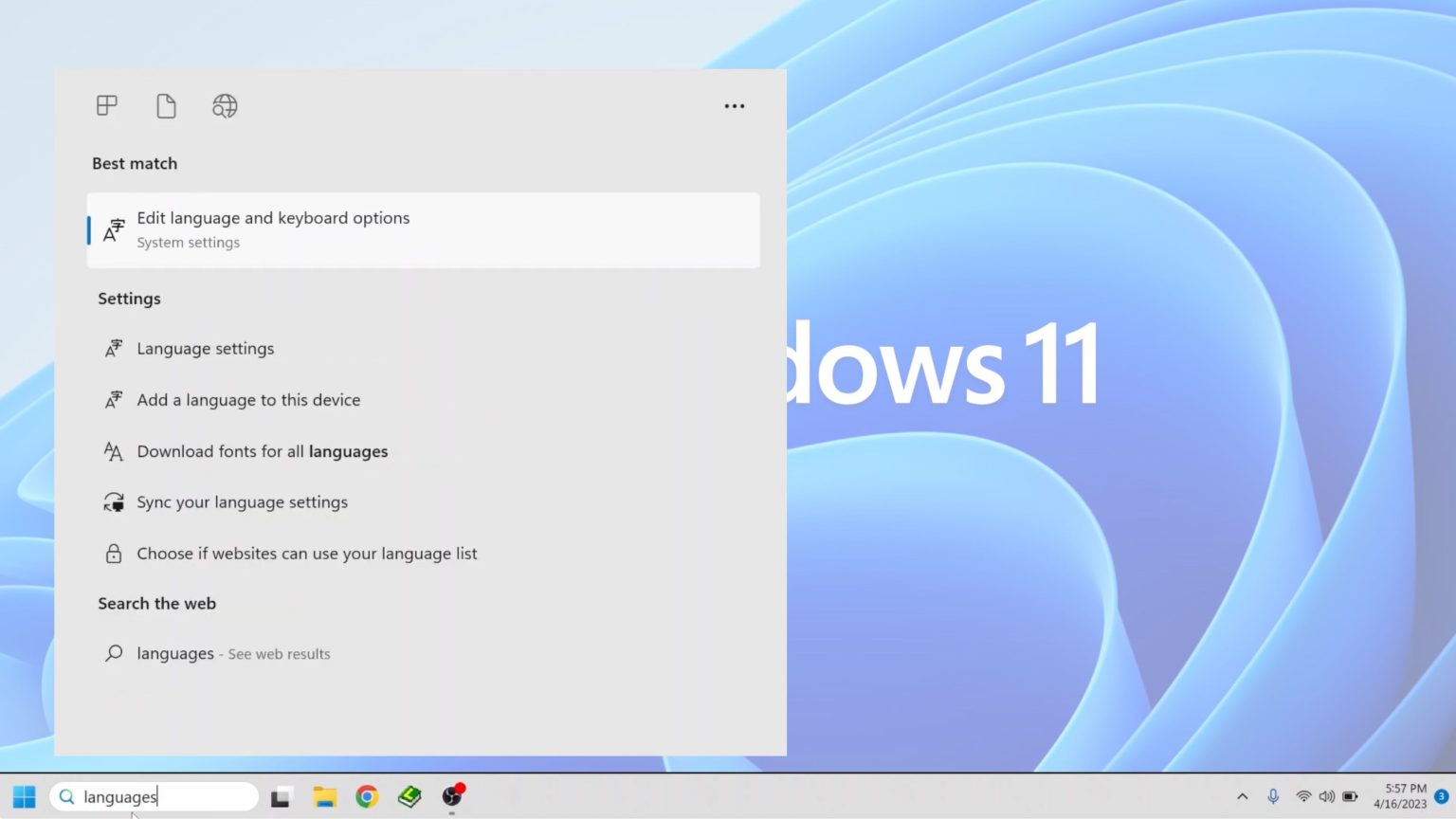
Select this option and then choose Add a language in the subsequent menu.
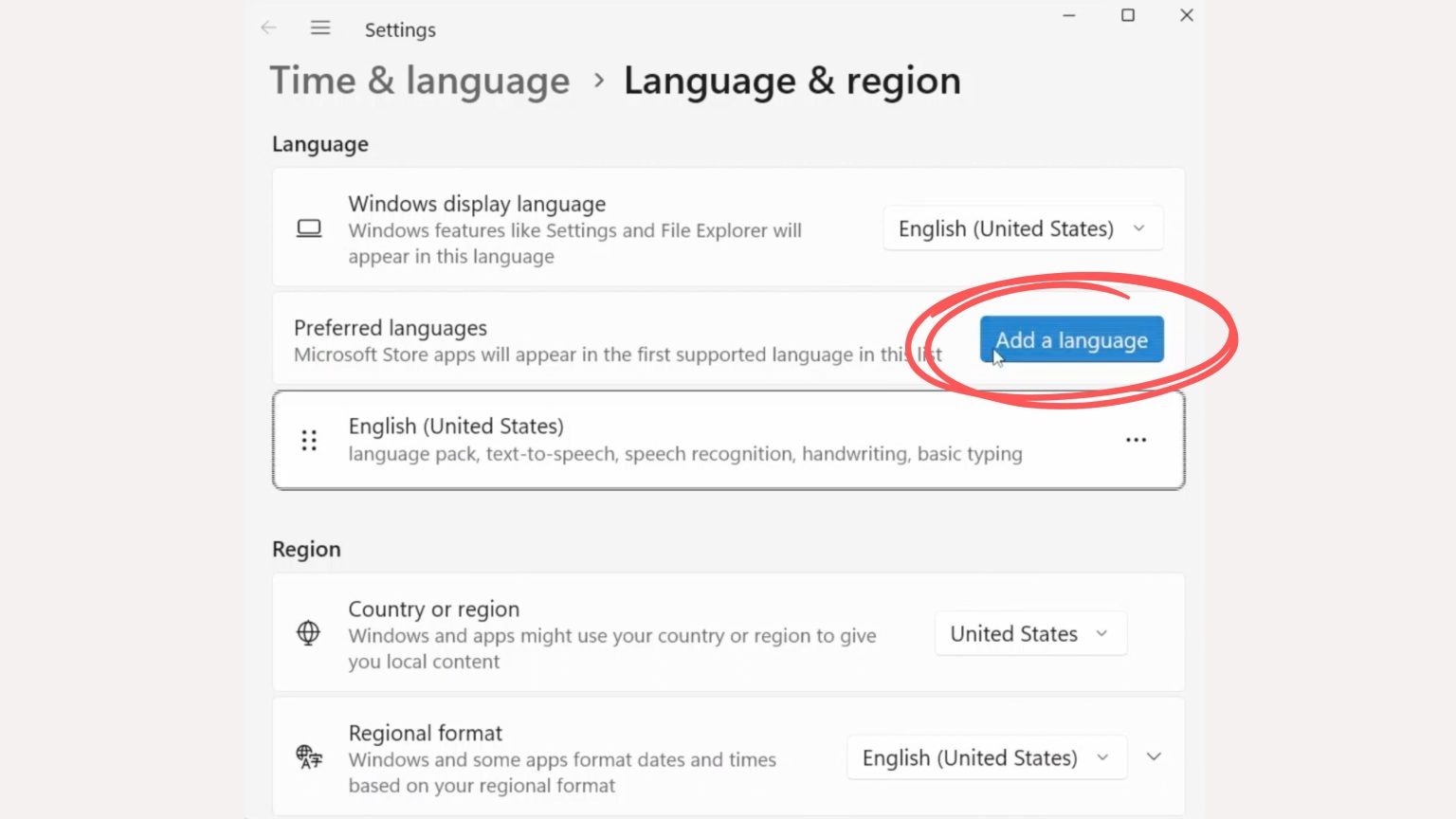
Step 2: Choose Language
A menu will pull up asking you which language you wish to add. You can either type in the name of the language or scroll through the list to find your choice of Croatian input options.
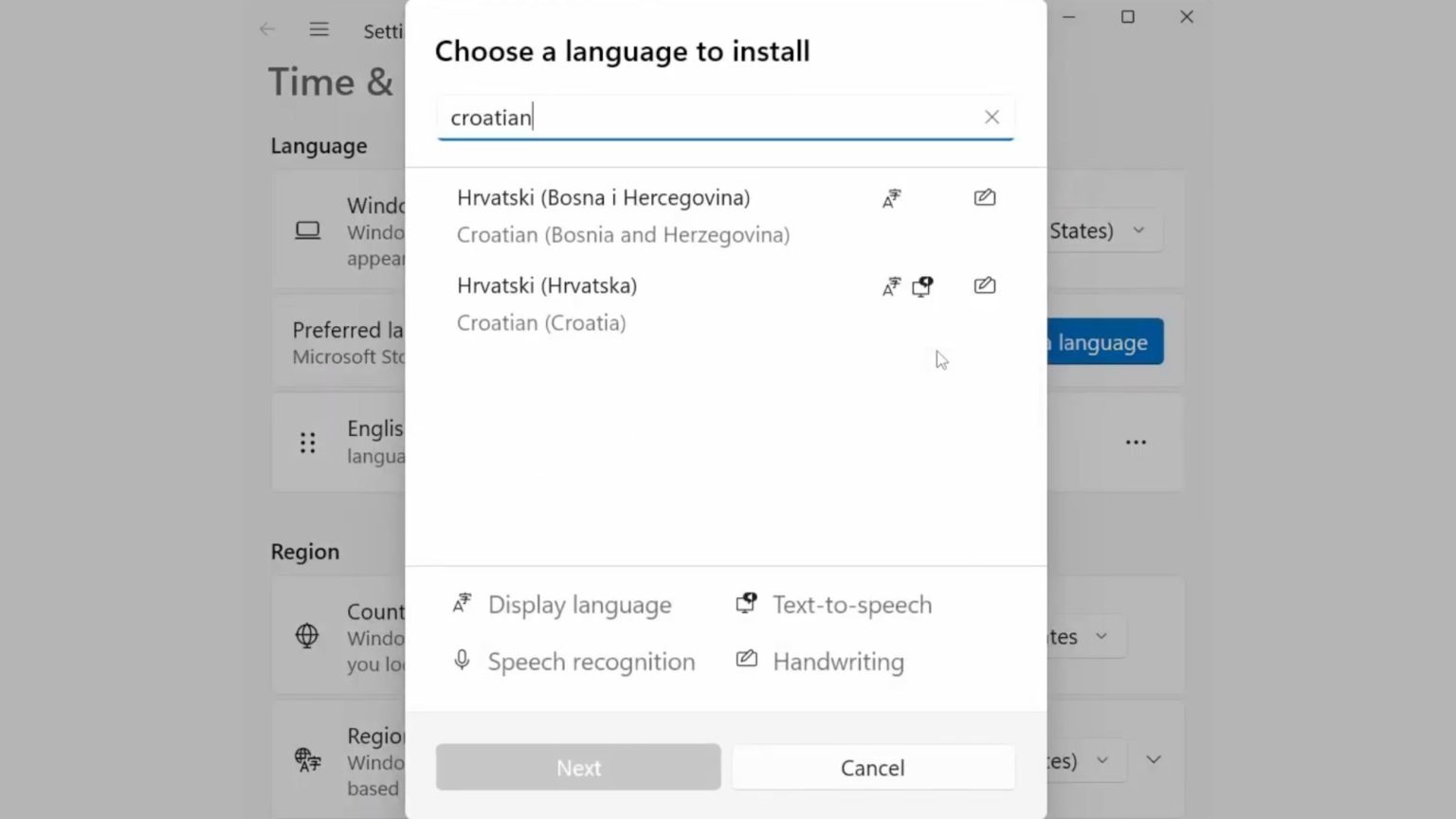
Step 3: Install Language Features
After selecting a language to add, you will have the choice of several optional language features. If you select Language Pack, you can change the menus and system language of Windows into Croatian. Additionally, Windows supports handwriting recognition.
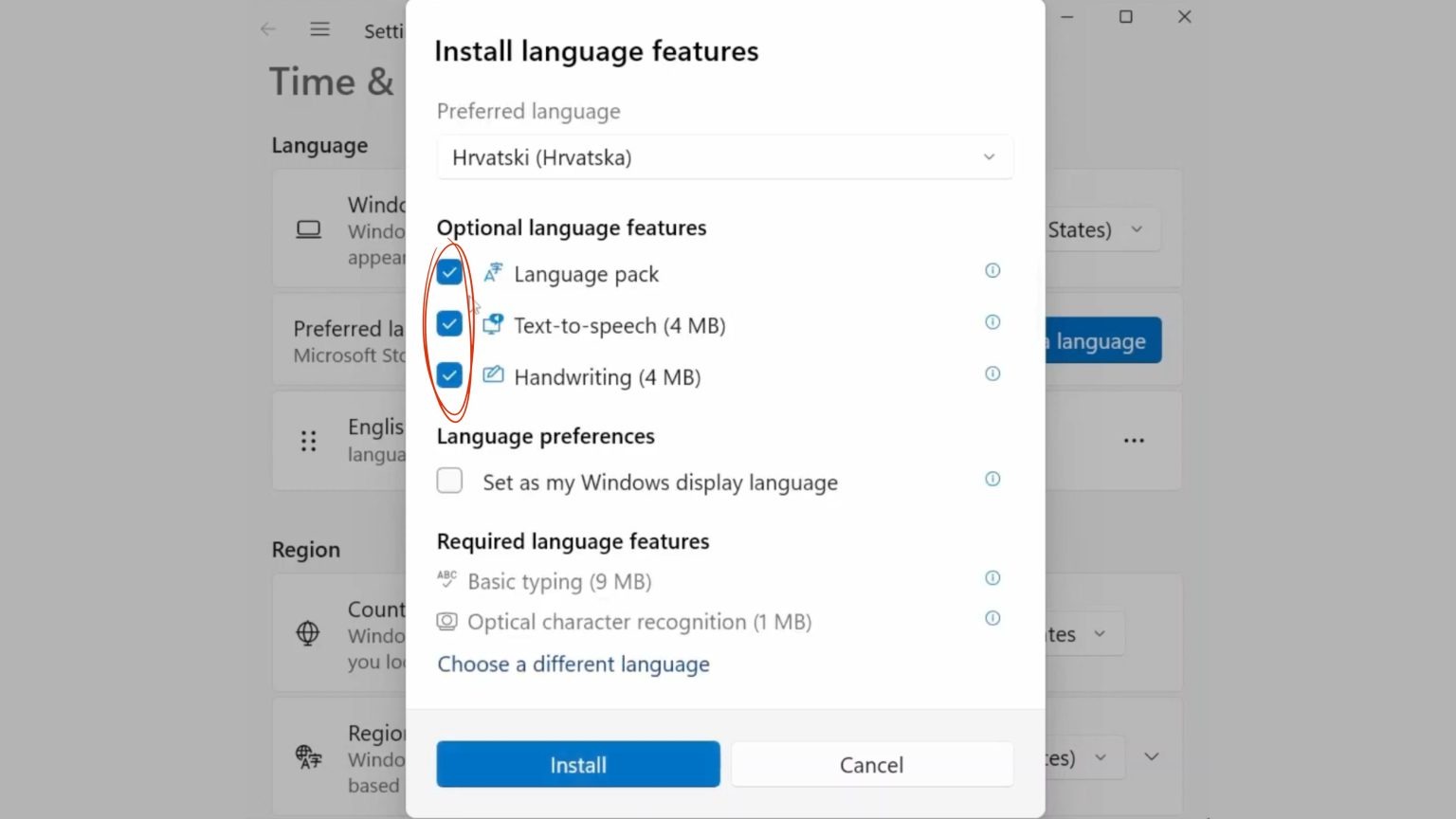
Step 4: Switch between languages
In order to switch between languages you will need to find the language bar at the bottom right side of your screen. The illustration below shows how one could theoretically switch between any of the keyboards, but in practice one probably only needs to install the keyboard of the language variant they will be studying.
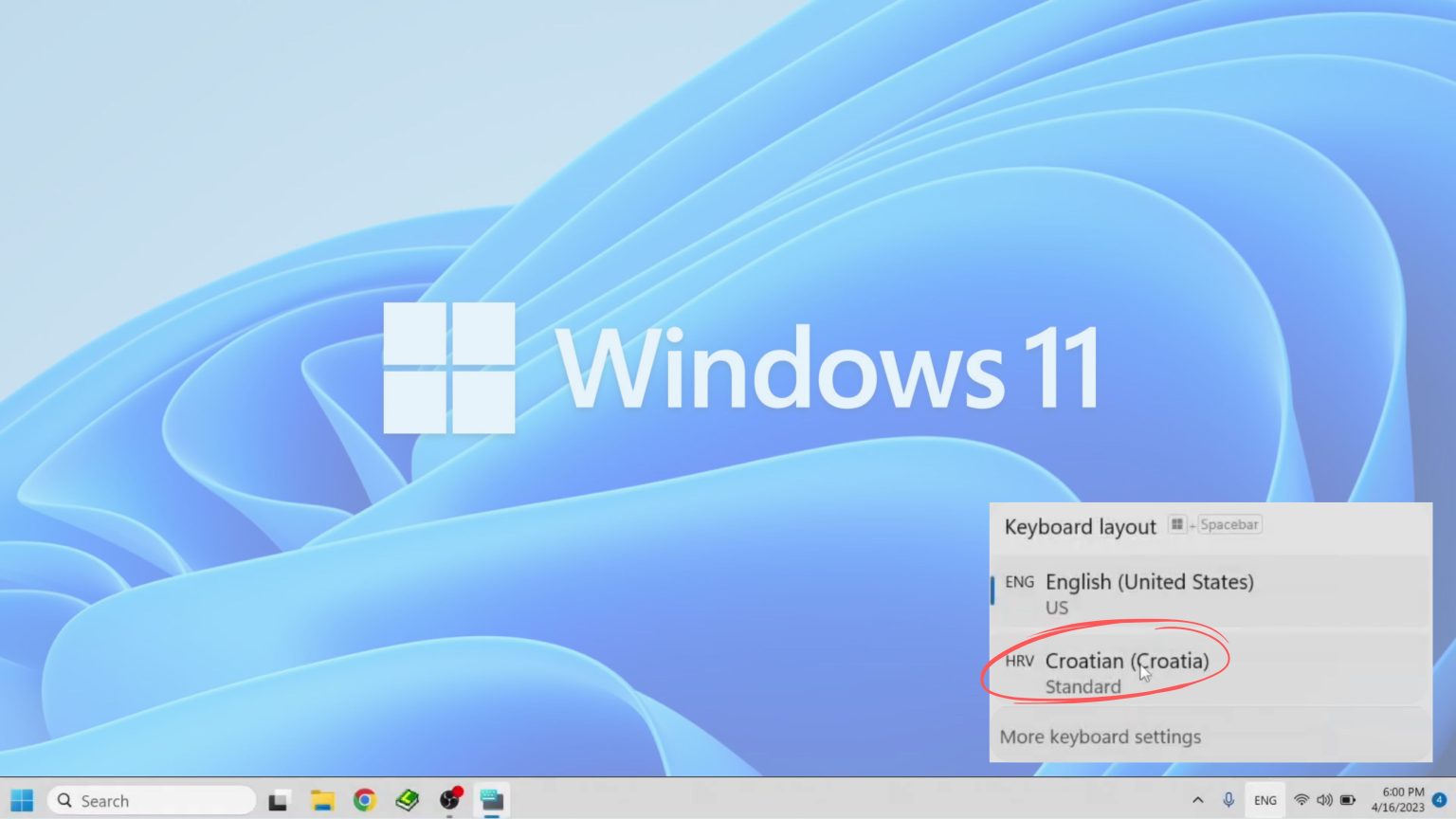
Navigating the language input on a PC computer/laptop
Since Croatian has certain letters that are not part of the English alphabet you will need to learn where those letters are located on the keyboard. See below for details on how to do this.
Croatian keyboard
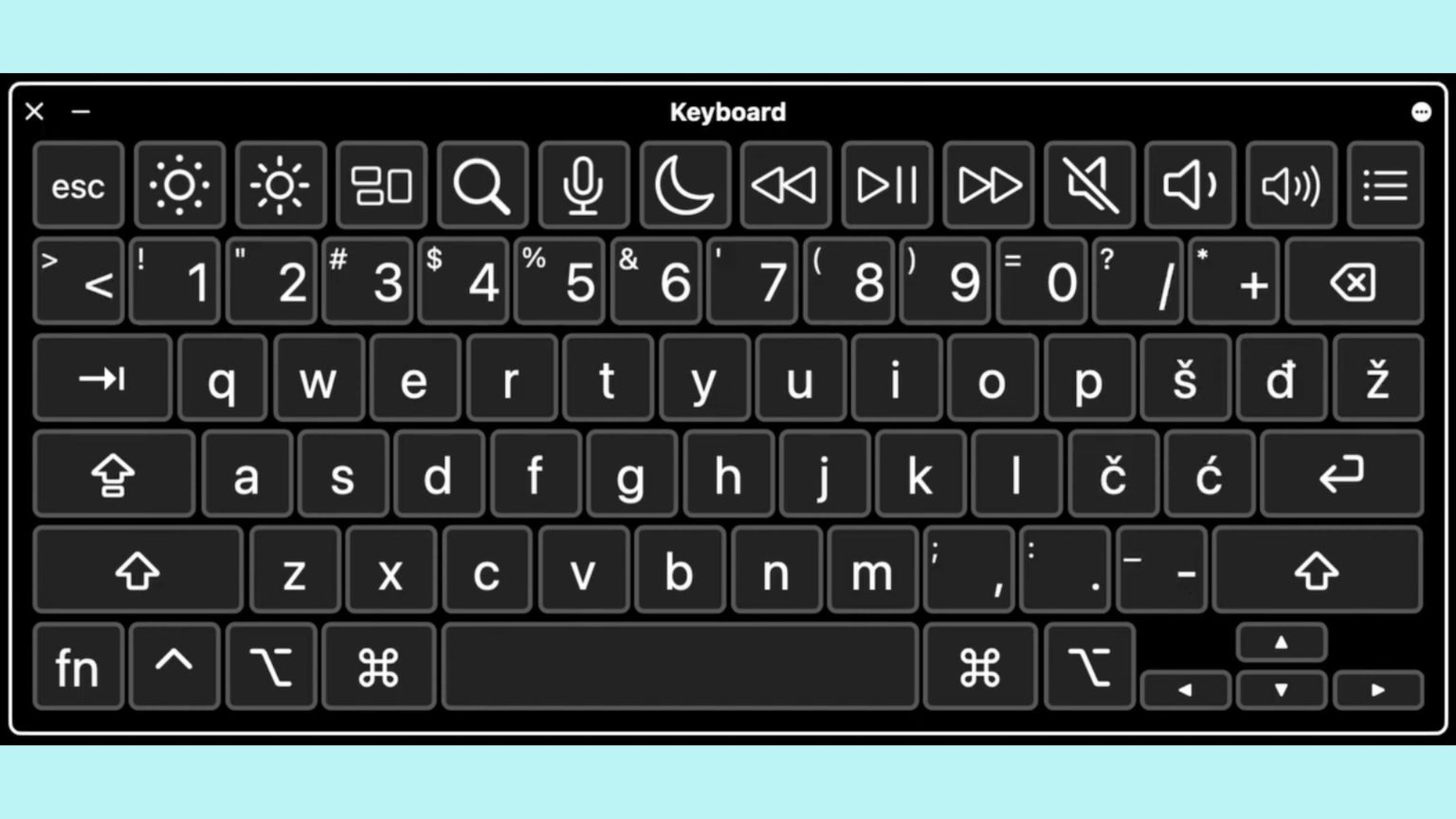
When you install the Croatian keyboard, you will need to learn where certain letters are located on your keyboard. There are also special keys for letters that are not found in the English alphabet): š – đ – ž – č – ć. Below you will find the layout for these specific letters.
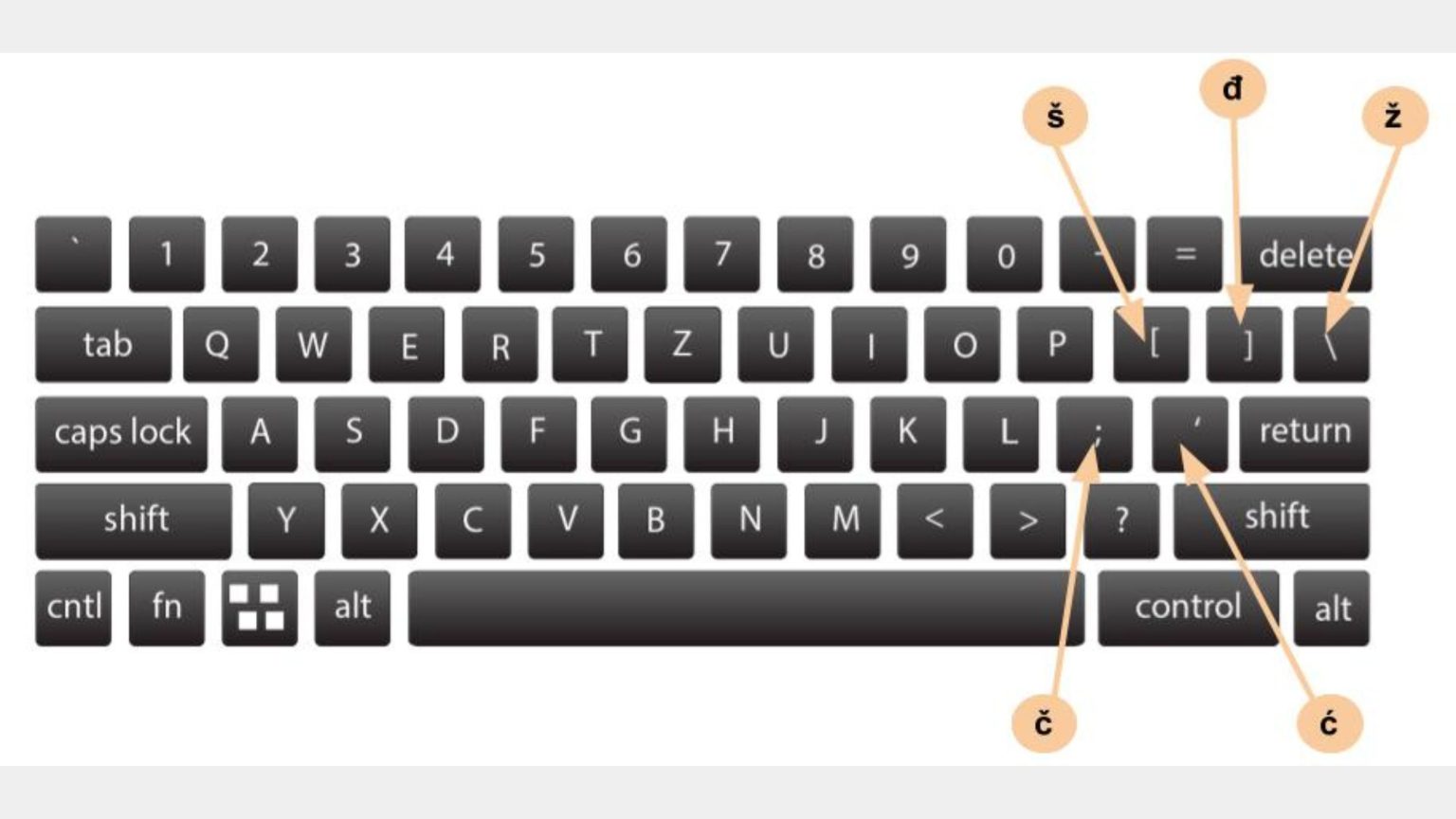
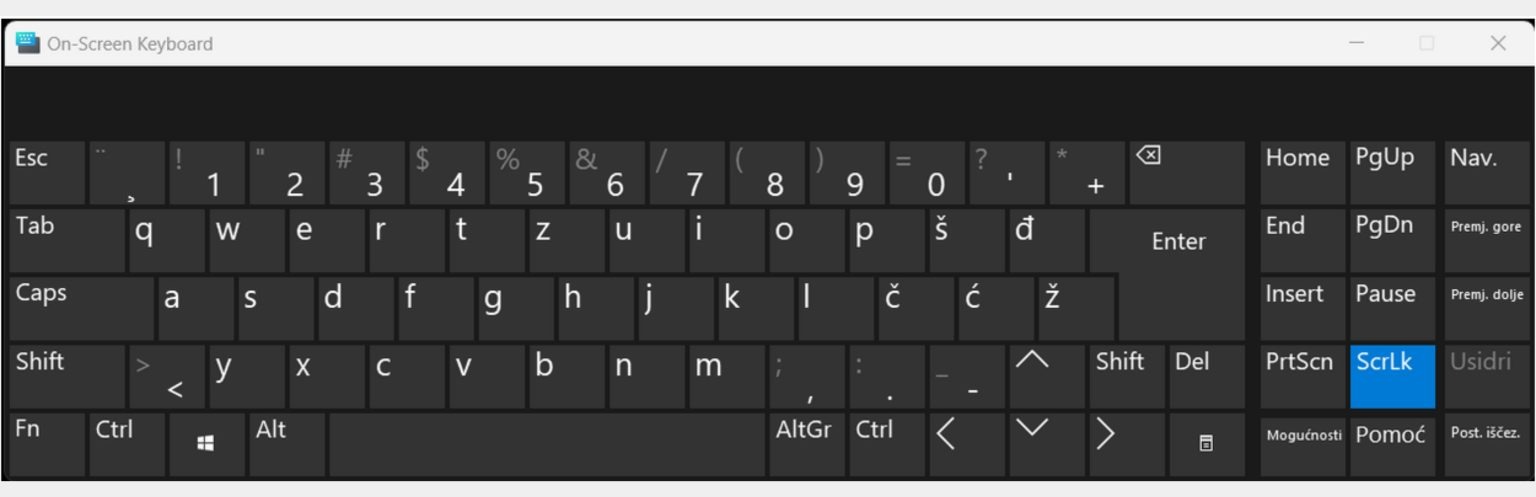
Optional – After you set your keyboard to Croatian, you can open the Windows On-Screen Keyboard. This is one way of helping you learn the new keyboard layout.
How do you install a foreign language keyboard on a Mac?
The following guidelines are made for MacOS Version 13.3. There may be some differences based on the operating system you currently have. However, the general idea should be the same.

In these step-by-step instructions, you will learn how to add a Croatian keyboard to your PC desktop/laptop. You can add as many languages you want.
Step 1: Apple Menu
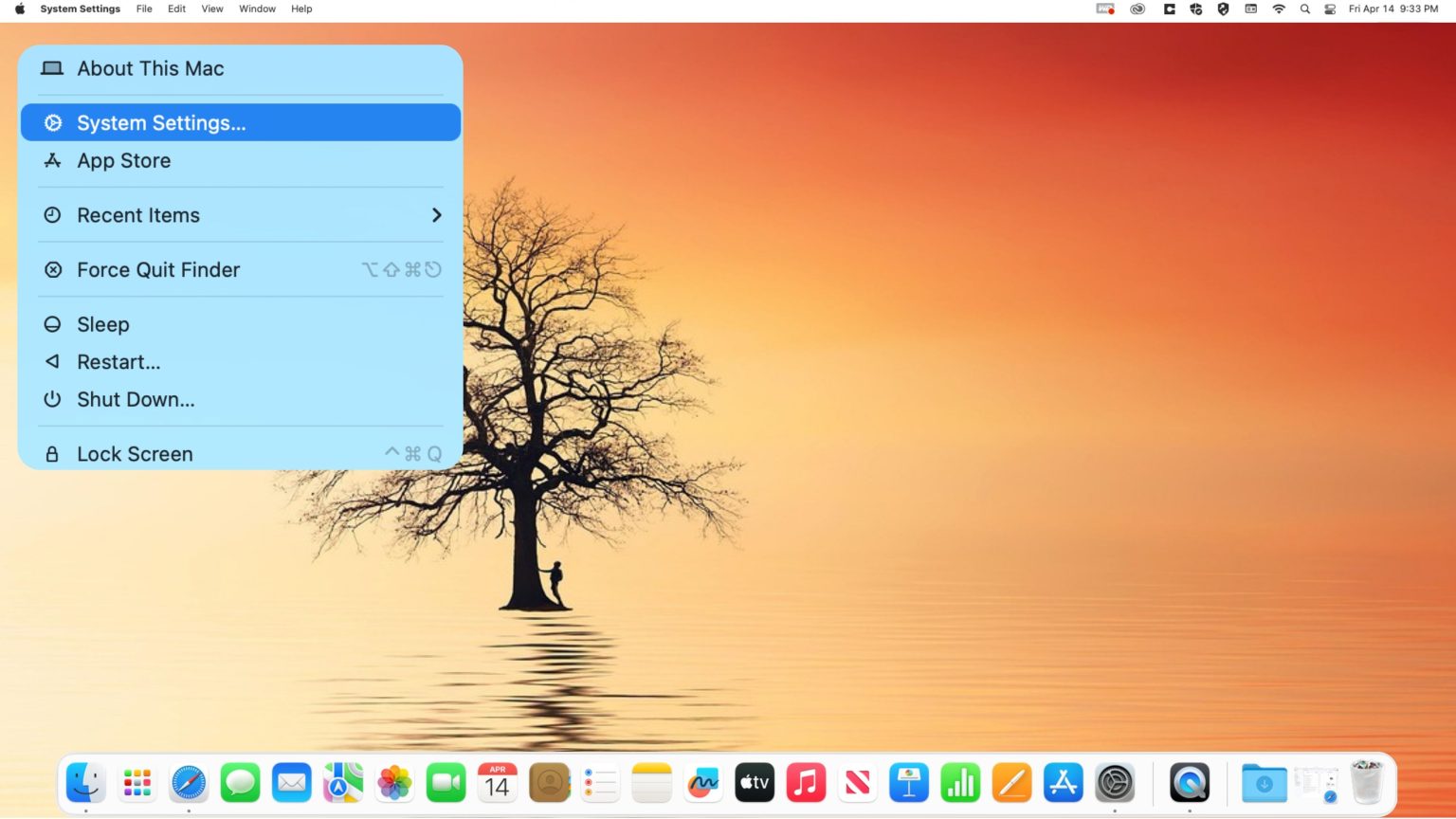
From the Apple menu (top left corner of the screen) go to System Settings.
Step 2: System Settings
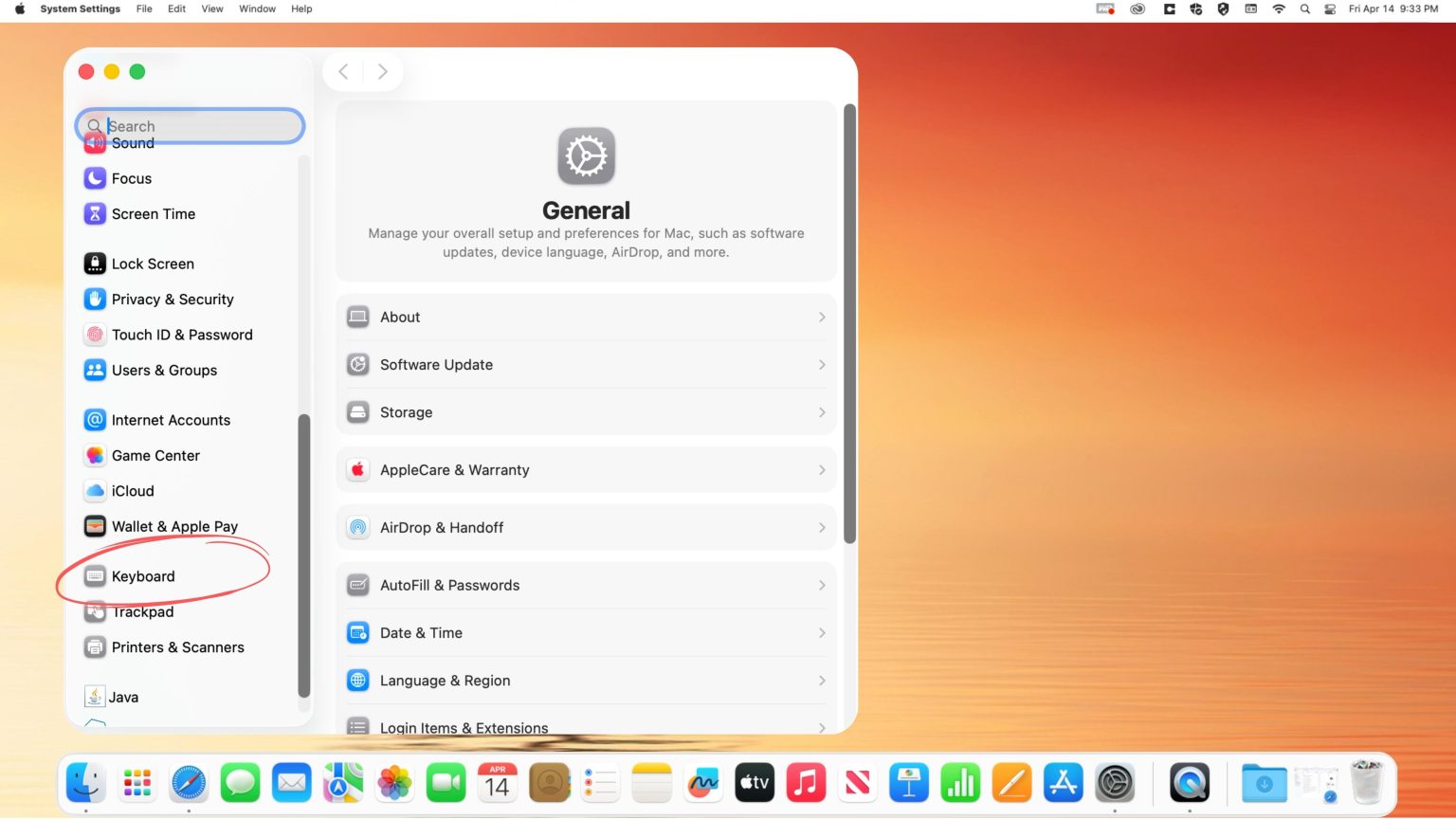
In the System Settings, scroll down to find Keyboard input and click on it. It will guide you towards the next step.
Step 3: Keyboard
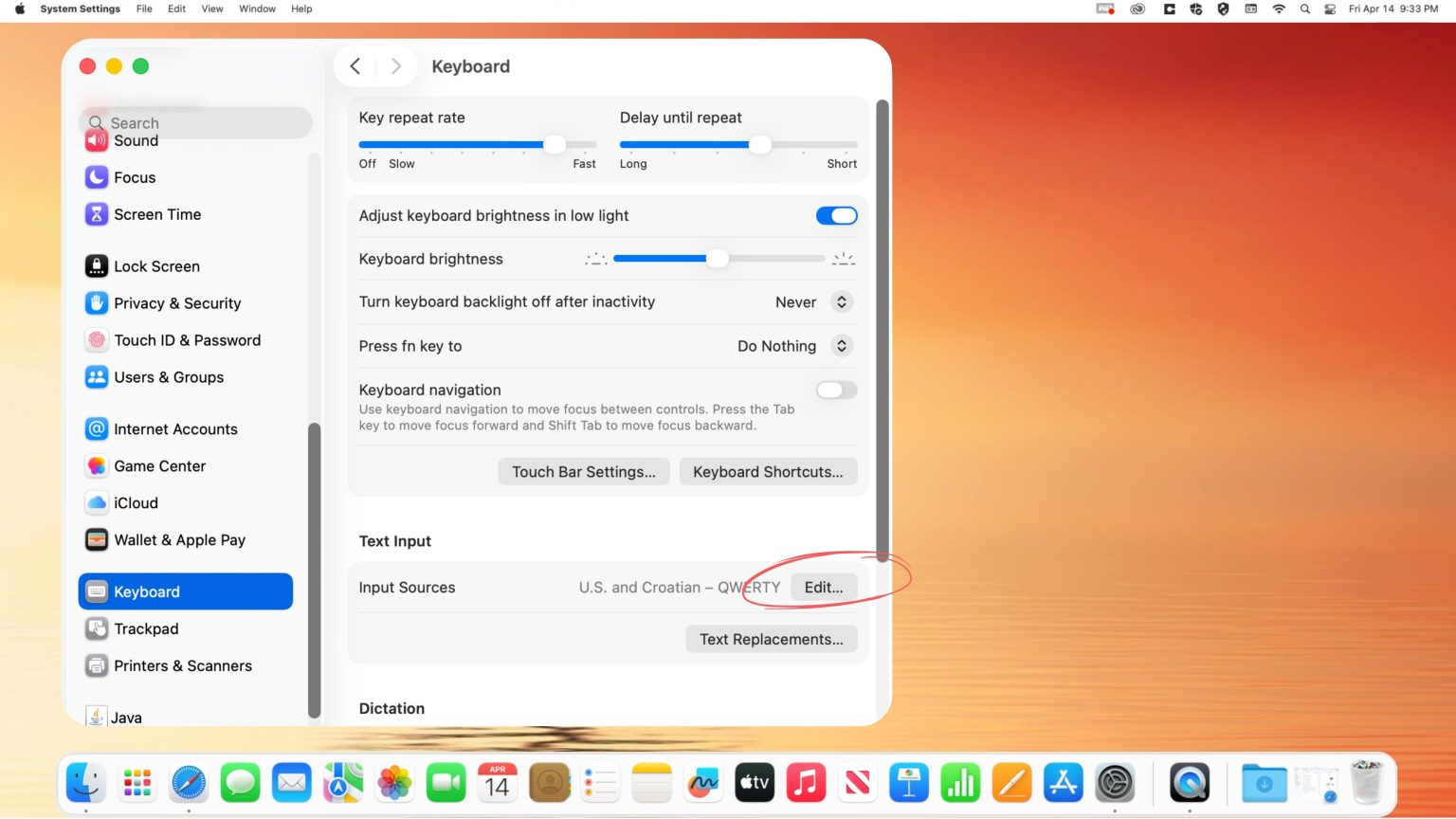
When in the Keyboard tab, click on Edit (right side of the screen). A new window will open.
Step 4: Adding a language
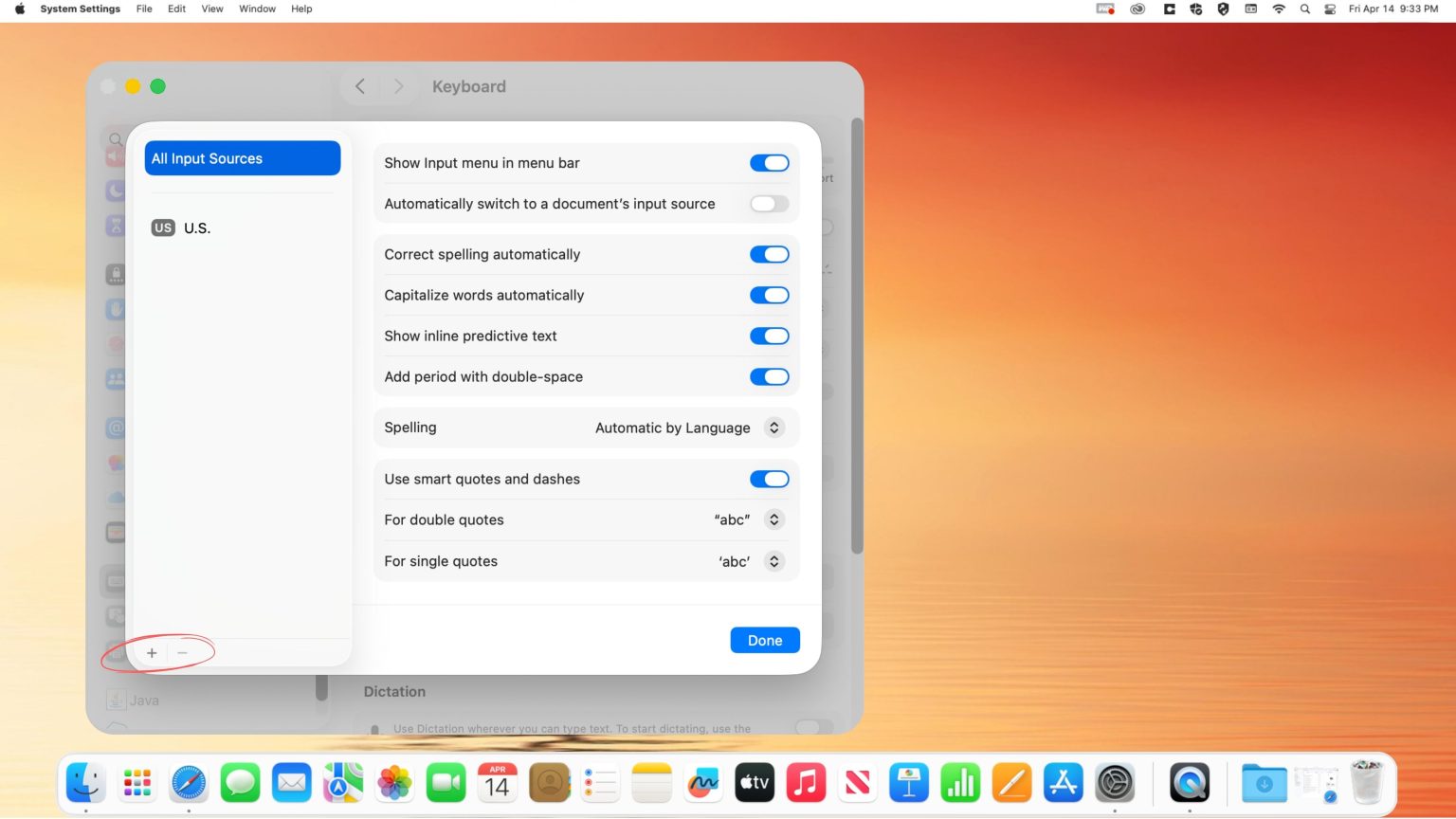
Click on the plus (+) button. A new window will open.
Step 5: Choose the language you want to add
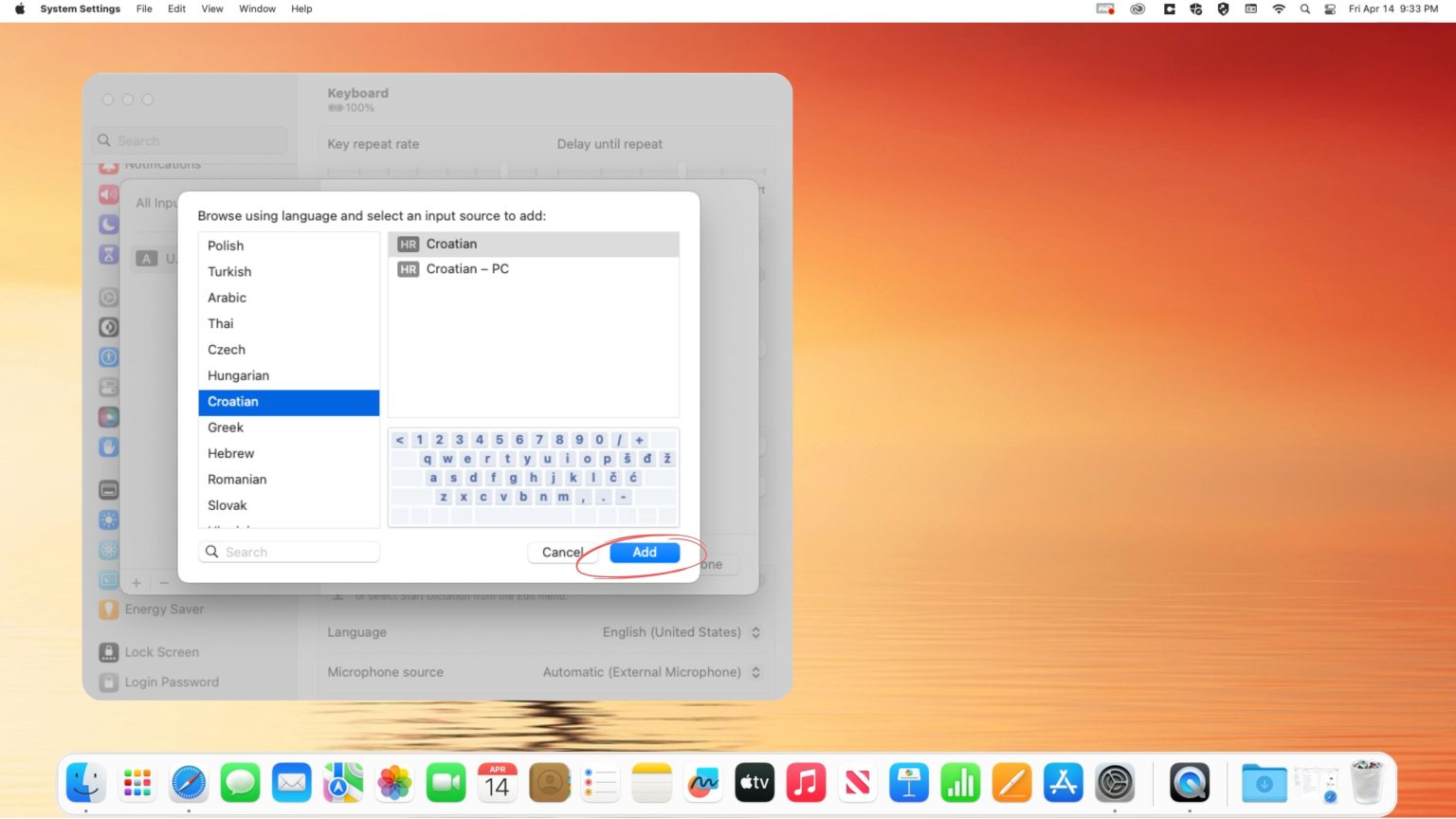
Scroll down the list of languages. Find Croatian and click on Add. A new window will open.
Step 6: Confirming the language input
On the left slide of the window you will see all the languages that have been added to your keyboard. To confirm the addition of Croatian, click Done to finish the process. Only then will the Croatian language keyboard be successfully added.
Step 7: Switch between languages
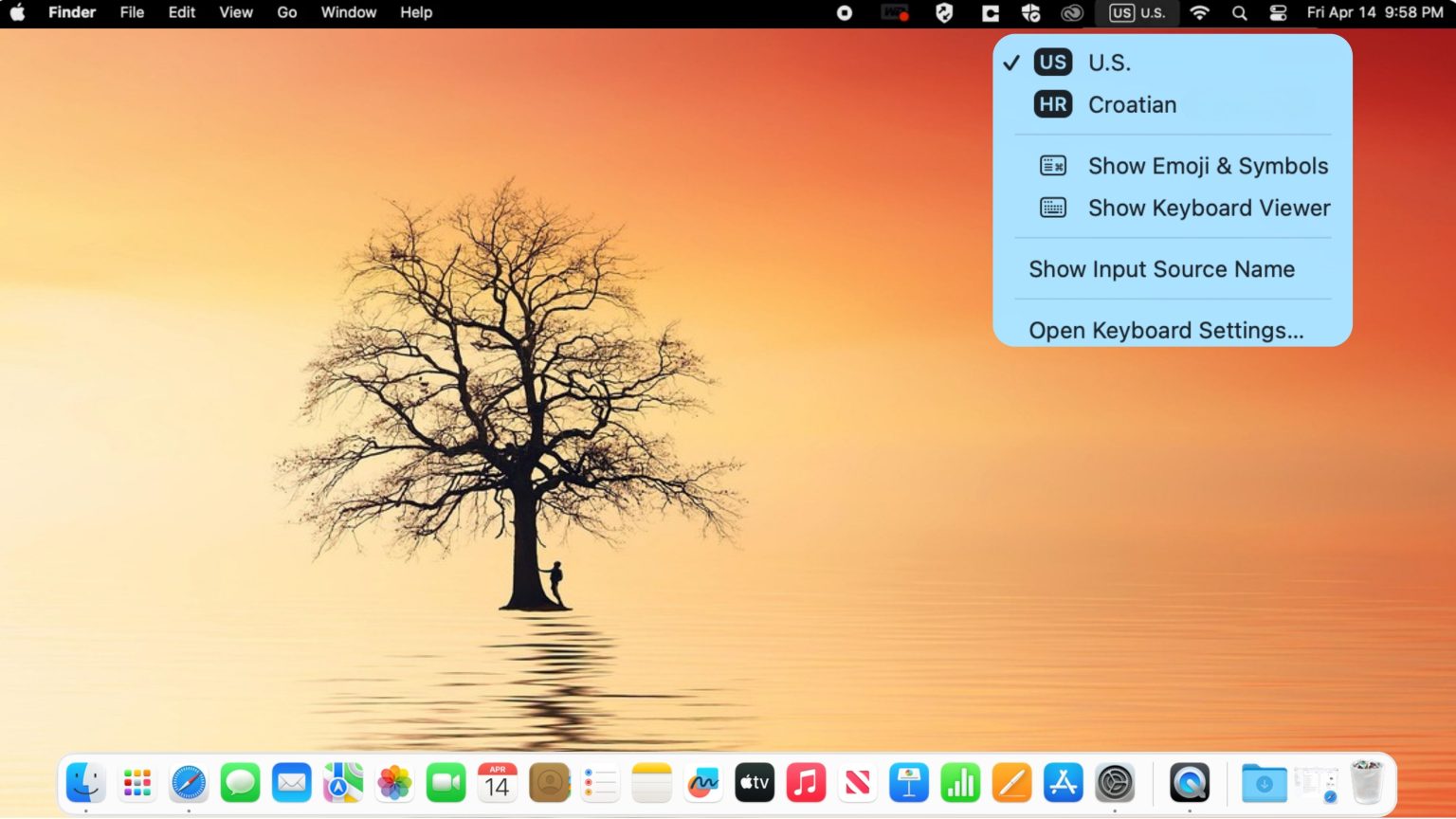
In order to switch between languages, go to your home screen and look in the top right corner for the language icon. Click on it to display the list of installed languages. Choose one that you need.
Navigating the language input on a Mac computer/laptop
Since Croatian has certain letters that are not part of the English alphabet you will need to learn where those letters are located on the keyboard. See below for details on how to do this.
Croatian keyboard
When you install the Croatian keyboard, you will need to learn where certain letters are located on your keyboard. There are also special keys for letters that are not found in the English alphabet): š – đ – ž – č – ć. Below you will find the layout for these specific letters.
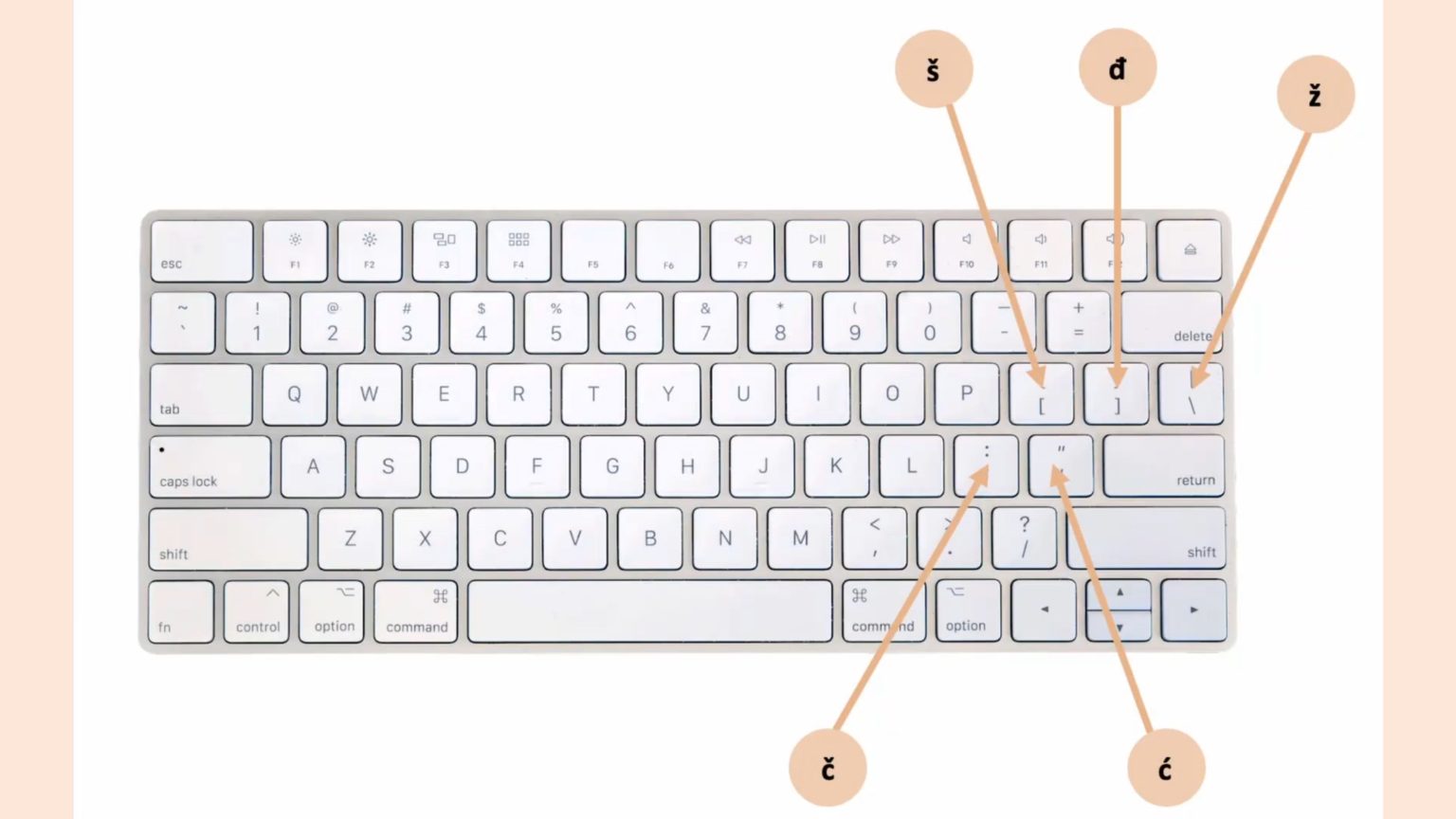
After you set your keyboard to Croatian, you can also go back again to your home screen and look in the top right corner for the language icon. Click on it to display the list of options. Choose Show Keyboard Viewer. The Croatian keyboard will appear on your screen.